You can configure internal, public, and VPC-accessible ports for a deployment. You can link public or VPC-accessible ports to a subdomain.
You can add ports required by your application manually, or Northflank can automatically detect ports exposed by your Dockerfile.
You can add ports during service creation or from Run → Networking on deployment and combined services. Port changes do not require a restart.
| Protocol | Uses | Public or VPC ingress? |
|---|---|---|
| HTTP(S)/1.1 | Common web servers, websockets | Yes |
| HTTP(S)/2 | Modern web servers, gRPC , websockets | Yes |
| TCP | Common applications | No |
| UDP | Real-time communication, media and game servers, VoIP, DNS | No |
You can use any port from 1 to 65535 (ports for web servers are often 80, 443, 3000, 8000, and 8080).
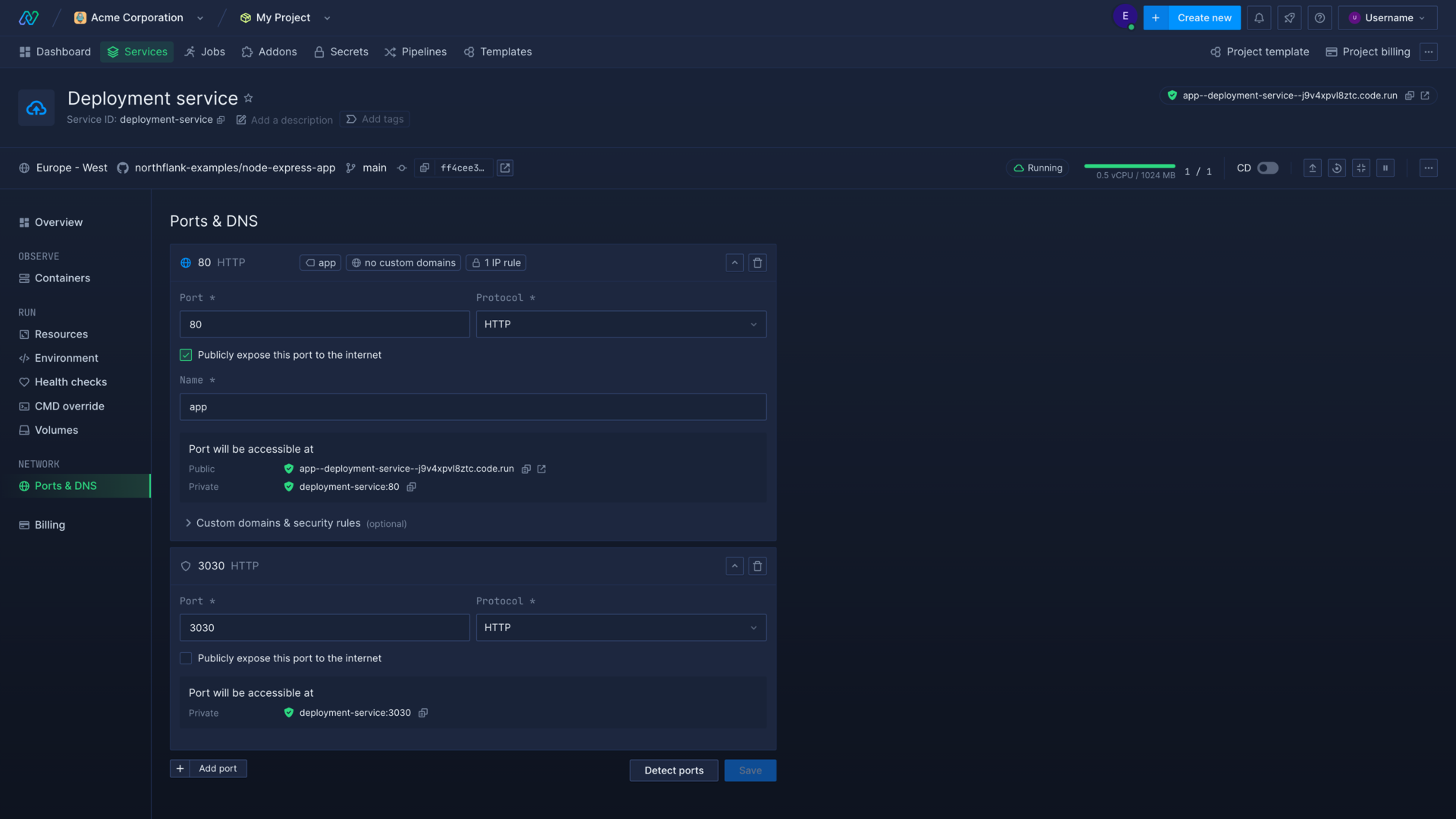
Public ports
Public ports allow your application to receive requests from clients on the internet. Only HTTP and HTTP/2 ports can be publicly exposed.
On BYOC, public ports need public ingress enabled and ready on the cluster. See Public and VPC ingress for availability and configuration. TCP and UDP service ports require a separate Layer 4 load balancer for internet access.
Public ports are automatically assigned a Northflank domain name, secured with an automatically-generated TLS certificate. They take the format:
[port-name]--[service-name]--[random-string].code.run
Public ports can be also linked to your own subdomain.
Your application can be configured to listen on any port for HTTP/S traffic. Northflank will expose your HTTP ports publicly on ports 80 and 443 and route traffic to your configured port. HTTP (port 80) traffic will be automatically redirected to HTTPS (port 443).
For example:
| Application port | Port configuration on Northflank | Ports exposed by Northflank |
|---|---|---|
| 80 | 80, HTTP, publicly exposed | 80, 443 |
| 3000 | 3000, HTTP, publicly exposed | 80, 443 |
VPC ports and dual exposure
VPC ingress is incoming traffic through a private load balancer. It requires an eligible BYOC cluster with private ingress installed and client connectivity to the VPC. See Public and VPC ingress for availability and cluster configuration.
Open Run → Networking in the service menu. Choose the port's Accessibility. Save the port changes. The service API represents these choices with two independent fields:
| Accessibility | public | vpcAccessible | Ingress path |
|---|---|---|---|
| Private | false | false | Internal only |
| Public | true | false | Public load balancer |
| VPC | false | true | Private load balancer |
| Public and VPC | true | true | Both load balancers |
Both fields default to false in service creation requests. Automatic port detection can choose different exposure defaults. The Private choice means project-internal access. The VPC choice uses the cluster's private ingress.
Ordinary service ports support only HTTP and HTTP/2 on either ingress path, including WebSockets and gRPC over those protocols. Setting vpcAccessible does not expose arbitrary TCP or UDP service ports.
Layer 4 load balancers route TCP or UDP connections. Dedicated load balancers are separate resources under Cloud → Load balancers. They do not use the service-port exposure choices above.
Public and VPC hostnames
A port exposed on both paths has separate public and VPC hostnames. The VPC hostname adds --vpc before the first dot. For example:
Public: p01--example-service--default-service--user-abc1.salvo.code.run
VPC:    p01--example-service--default-service--user-abc1--vpc.salvo.code.run
Use the generated endpoints from Networking. Service API responses expose them as dns and vpcDns. The exact hostname format depends on the cluster's domain configuration.
Public and VPC exposure do not replace project-internal service addresses. A custom subdomain uses one ingress target, even when its port uses both. See domain ingress targets.
Move or unlink domains that require the path before removing a port's exposure. Keep each attached domain on a port that supports its ingress target. Disabling cluster ingress does not move those routes onto the remaining path.
Private ports
You can create a project-internal port for any protocol supported on Northflank. Set both public and vpcAccessible to false for internal-only access. This differs from VPC ingress.
Applications in your project will be able to access the private ports simply by referring to the service name and port in the following format:
[service-name]:[port-number]
Internal traffic in your project is managed with round-robin load-balancing between replicas.
You can forward private ports using the Northflank CLI, API, or JavaScript client.
If required, internal traffic between your containers can be encrypted with mTLS. Contact will@northflank.ai to discuss your requirements.
Detect ports
When you create a deployment, Northflank scans the image manifest to detect and add exposed ports. You can also use Detect ports under Run → Networking in the service menu. Make sure that the detected ports match your deployment.
You can expose ports in your Dockerfile in the following ways:
# HTTP port (public by default)
EXPOSE 3000
# TCP port (private)
EXPOSE 2121/tcp
# UDP port (private)
EXPOSE 7171/udp
Next steps
Add a domain
Add your domain name to your Northflank account.
Link a domain to a port
How to link and unlink domains and subdomains with specific ports on your deployments.
Set IP policies
Allow or deny access to services based on IP addresses.
Configure basic authentication
Require users to enter a username and password to access your site.